Workspaces
A workspace is a sealed container for one thing you monitor — its checks, its alerts, its history and its plan. Nothing crosses between them.
What a workspace holds
Most people end up with one workspace per environment, per client, or per team. The reason to split is that a workspace is the boundary for everything below: change the plan on one and nothing else moves.
| Belongs to a workspace | Shared across all of them |
|---|---|
| Monitors and their check history | Your login |
| Action groups and alert destinations | |
| Incidents, including closed ones | |
| Status pages | |
| Teams and on-call rotations | |
| The plan, the subscription and MCP access |
Your first one is free
Signing up creates a workspace for you on the Starter plan. You do not have to do anything to get it, and it is the one you land in.
Every workspace after that is on a paid plan and is billed as its own subscription. Two workspaces on Growth are two Growth subscriptions.
Buying another
From Workspaces, choose New workspace. Payment comes first, and the workspace is created once it completes.
- Give it a name. This is what you will see in the switcher, so name it after the thing it watches.
- Pick the plan, and whether you are billed monthly or annually.
- Press Create workspace. You are taken to Stripe to pay.
- Once payment completes the workspace is created and appears in your list.
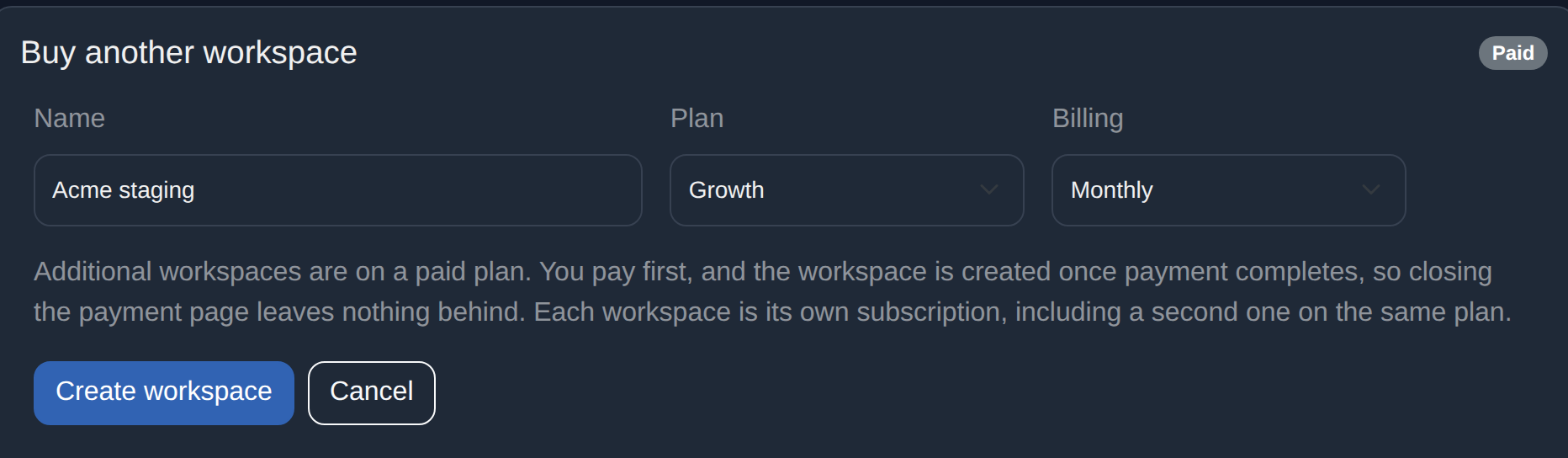
If you close the Stripe page, nothing is created and nothing is charged. That ordering is deliberate: creating the workspace first and upgrading it after payment would leave anyone who backed out holding a free extra workspace. You are returned to the page you started from.
Moving between them
You are always working inside exactly one workspace, and everything you see belongs to it. Switch from the workspace switcher in the Settings menu, or from the table on the Workspaces page.
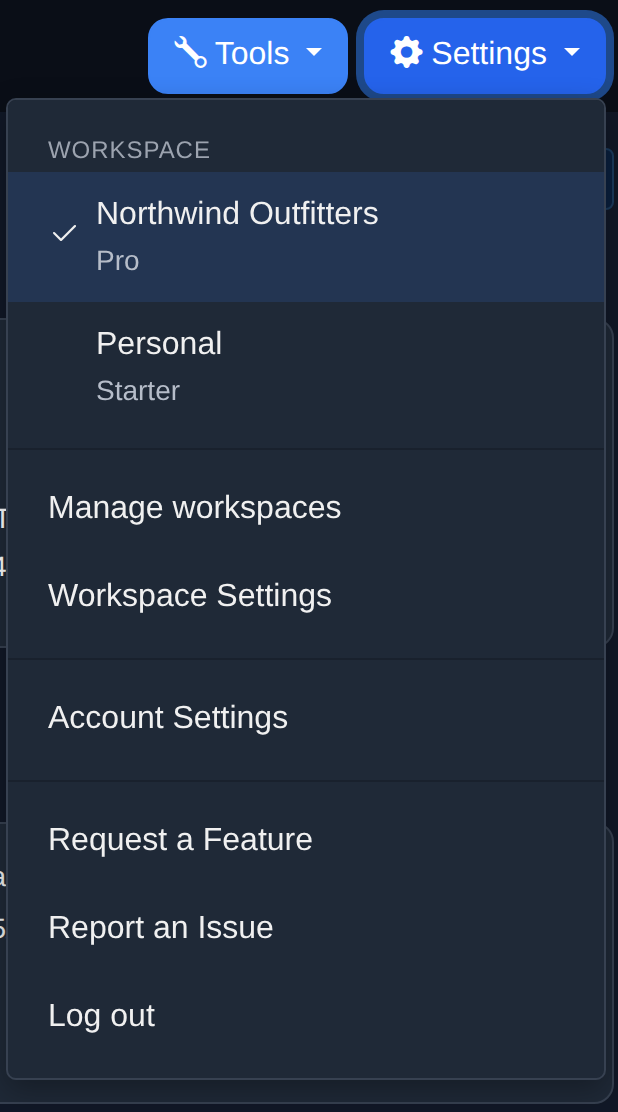
The switch is recorded on the server rather than only in the tab you are looking at. Open WebSignal somewhere else, or reach it through MCP, and you are in the same workspace you left.
Your role is per workspace — you can be an Owner in one and a Viewer in another.
What each plan allows
These are per workspace, and they come from that workspace’s own plan rather than from whoever is looking at it. Working inside a Pro workspace gets you Pro’s allowances whatever your other workspaces are on.
| Plan | Monitors | Email alerts | SMS | Webhooks | Status pages | MCP |
|---|---|---|---|---|---|---|
| Starter | 50 | 2 | — | — | — | — |
| Growth | 75 | 5 | 3 | 3 | 1 | Read |
| Pro | 100 | 10 | 5 | 10 | 3 | Read & write |
| Enterprise | 200 | 50 | 50 | 50 | Unlimited | Read & write |
Monitor history is kept for 90 days on Starter, 180 on Growth, 365 on Pro and 730 on Enterprise.
Changing a plan or payment details
Open Workspace settings and use Upgrade Workspace to change plan, or Manage Subscription for cards, invoices and cancellation. Both act on the workspace you are currently in, so switch to the right one first.
Closing the payment page brings you back to where you opened it from.
Deleting one
Deletion is scoped to the workspace you are in, so switch to it first. The Danger zone names the workspace it will act on. A workspace’s monitors have to go before the workspace can.
- Switch to the workspace you want to remove.
- On Workspaces, go to Danger zone and select the monitors to delete, or All monitors.
- Confirm. Deleting a monitor also closes its open incidents and removes its history.
- With the list empty, type the workspace’s name to confirm and press Delete this workspace.
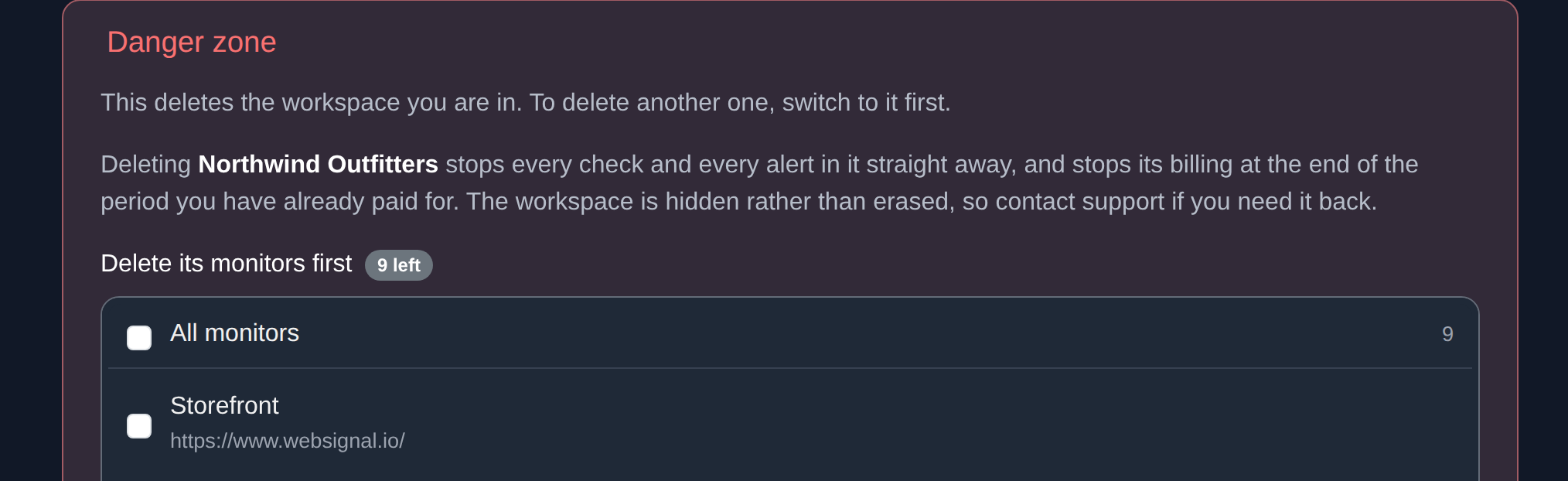
Every check and every alert in the workspace stops straight away. Billing stops at the end of the period you have already paid for; there is no partial refund.
The workspace is hidden rather than erased, for 90 days. If you delete one by mistake within that window, contact support and it can be brought back.
Getting help
If something here does not match what you see, tell us at support@websignal.io.